
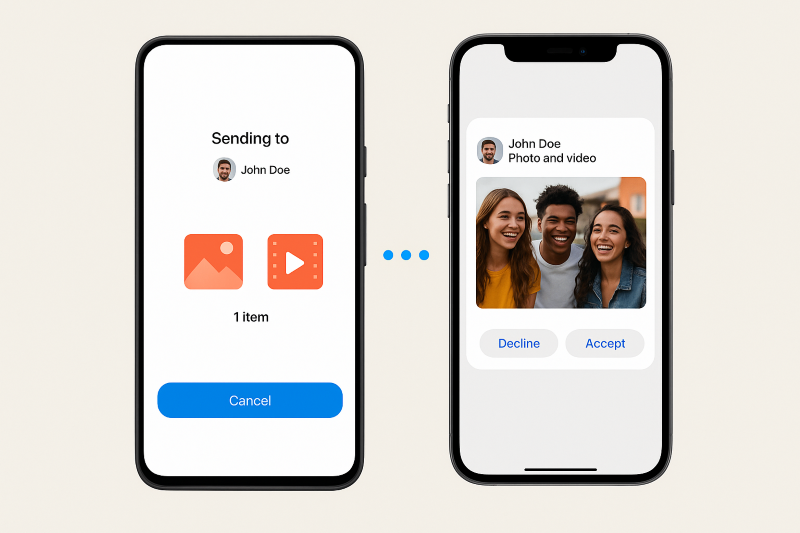
The new Quick Share feature, which will allow a two-way exchange of files between Android and Apple ecosystem, is now available in only limited series.
The feature is currently only available in Google Pixel 10 series - Pixel 10, Pixel 10 Pro, Pixel 10 Pro XL and Pixel 10 Pro Fold.
How to exchange files between Pixel and iPhone using Quick Share?
Check Compatibility
- This feature is currently limited to the Pixel 10 lineup (Pixel 10, 10 Pro, 10 Pro XL, 10 Pro Fold).
- Ensure your Pixel has received the Quick Share extension update.
Enable AirDrop on the iPhone
- On the iPhone, open the Control Center, tap AirDrop.
- Set AirDrop visibility to: Everyone for 10 minutes.
- This temporary mode allows the Pixel to detect the iPhone.
Share a file from Pixel
- On the Pixel, open the file (photo, video, document) you want to share.
- Tap Share → Quick Share.
- In the Quick Share menu, your iPhone should show up as a nearby device. Tap it.
Accept the transfer on iPhone
- The iPhone will get an AirDrop-style prompt: Accept or Decline the file.
- Once accepted, the file is transferred peer-to-peer (Bluetooth discovery, then Wi-Fi for transfer), so your data doesn’t go through a server.
Receiving files on Pixel
- If you want to receive files from the iPhone: on the Pixel, open Quick Share, switch to Receive mode.
- The iPhone user can then send via AirDrop again, and your Pixel will pop up as a target.
- Received files are stored in the Pixel’s Files app → Downloads → Quick Share folder.
Troubleshooting tips
- Make sure Bluetooth and Wi-Fi are turned on on both devices.
- Keep both devices close to each other (within ~30 cm is ideal).
- Update Pixel’s Google Play System and Quick Share extension if iPhone isn’t appearing.